
Elevate your living experience
Elevate your living experience
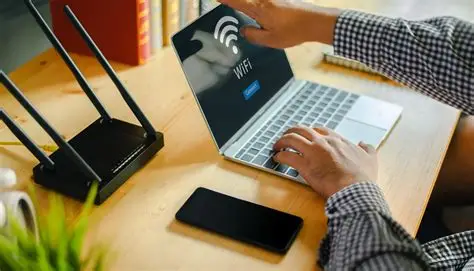
If your smart lights keep disconnecting or your Alexa randomly says, “I’m having trouble connecting right now,”. You’re not alone.
Wi-Fi problems are one of the most common frustrations for smart home owners. The good news? Most issues can be fixed with a few simple tweaks, no tech degree required.
In this guide, we’ll explain why smart home Wi-Fi problems happen, how to fix them, and the best affordable tools to keep your connection strong and stable.
Smart devices rely on constant connectivity. When your Wi-Fi signal drops or slows down, they lose communication, leading to lag, disconnections or failed commands.
Common causes include:
According to Reddit’s r/SmartHome, most users experience issues when adding multiple devices to older routers or mixing brands that use different network protocols.
Start by testing your signal. You can use free apps like Speedtest.net or Google Home’s built-in Wi-Fi diagnostics to see how strong your connection is in each room.
If your smart devices are far from the router, try moving them closer temporarily. If the problem disappears, you’ve found your culprit, weak signal range.
Pro tip: Smart plugs, bulbs, and cameras often prefer the 2.4GHz band, which travels farther than 5GHz. Make sure your router broadcasts both.
It sounds simple, but restarting your router and devices can solve half of all connectivity issues.
Here’s the quick fix routine:
If you’ve recently changed your Wi-Fi name or password, update it in each device’s settings, otherwise they’ll keep trying to connect to the old network.
Your router’s location matters more than you think.
Avoid hiding it behind furniture or placing it near metal objects. Ideally, position it centrally in your home and elevated (like on a shelf).
If you live in a multi-storey house, consider adding a Wi-Fi extender or mesh system to cover dead zones.
Pinterest trend tip: Many homeowners now disguise routers inside decorative mesh covers, both stylish and functional.
Outdated software can cause random disconnects.
Check your router’s admin page or app for firmware updates. Do the same for your smart devices, brands like TP-Link, Tado and Amazon regularly release patches that improve connectivity.
Keeping everything updated ensures your devices speak the same “language” across your network.
If you’ve tried everything and still experience dropouts, it might be time to upgrade your network setup.
Click the pictures or buttons to shop!
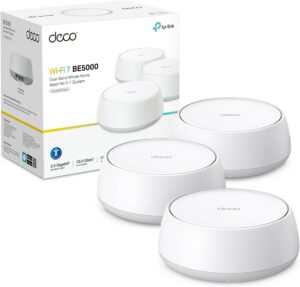
This affordable mesh system replaces your router and creates a seamless network across your home. Perfect for eliminating dead zones and keeping all smart devices connected.
It’s one of the most budget-friendly systems available, ideal for homes with multiple smart devices.
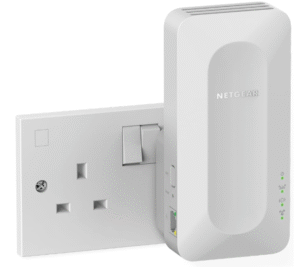
Boost your existing Wi-Fi signal without replacing your router. This compact extender plugs into any wall socket and instantly improves coverage.
It’s perfect for fixing weak spots in bedrooms, garages, or lofts. No complicated setup required
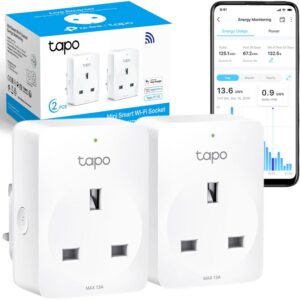
This smart plug not only automates appliances but also monitors energy use and connectivity. Great for spotting devices that cause Wi-Fi strain.
It’s an affordable way to manage both power and network load – ideal for troubleshooting smart home setups.
If you have dozens of smart devices, your router might simply be overwhelmed.
Try these quick fixes:
Reddit tip: Some users create a separate “Smart Home” Wi-Fi network just for devices, keeping streaming and gaming traffic separate.
Smart home Wi-Fi issues are frustrating, but they’re rarely permanent.
By checking signal strength, updating firmware, and optimising your setup, you can enjoy smooth, reliable automation across your home.
Start small, fix weak spots, upgrade gradually, and your smart home will stay connected, responsive, and stress-free.
Why do my smart devices keep disconnecting?
Usually due to weak Wi-Fi signal, router overload, or outdated firmware.
Do smart devices slow down Wi-Fi?
They can if you have too many connections at once. Mesh systems help distribute the load.
Should I use 2.4GHz or 5GHz for smart devices?
Most smart devices prefer 2.4GHz because it offers better range.
Can I fix Wi-Fi issues without buying new equipment?
Yes, try repositioning your router, restarting devices, and updating firmware first.
How do I know if my router is outdated?
If it’s over five years old or doesn’t support dual-band or mesh networking, it’s time to upgrade.
HomeSmarti participates in the Amazon Associates programme. We may earn a small commission from qualifying purchases at no extra cost to you.